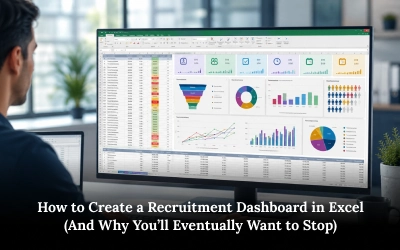
If you are managing a growing team, you know that recruitment isn’t just about “hiring people.” It is about data. You need to know how long it takes to fill a role, where your best candidates are coming from, and why your pipeline is stalling.
For most HR professionals, the first instinct is to open a blank spreadsheet. Excel is familiar, it’s “free,” and it’s flexible. But there is a ceiling to what a manual spreadsheet can do for you.
This guide will show you exactly how to build a professional recruitment dashboard in Excel. We will cover the formulas, the tables, and the charts. Then, we will discuss why manual tracking is costing you more time than you realize, and how to switch to a fully automated recruitment platform that does the heavy lifting for you.
Phase 1: The Blueprint (Structuring Your Data
A dashboard is only as good as the data behind it. Before you touch a chart, you must build a clean, structured database. Most people fail here because they mix “summary” data with “raw” data.
Stop entering totals manually. Start entering individual candidate actions.
1. Create Your Columns
Open a new Excel sheet and create the following headers. This will be your “Master Candidate Tracker.”
- Candidate Name: The primary identifier.
- Job Title: To filter metrics by role.
- Source: (LinkedIn, Referral, Indeed, Niyuk AI Sourcing).
- Application Date: The date they entered the pipeline.
- Current Status: (Applied, Screened, Interviewing, Offered, Hired, Rejected).
- Hire Date: Leave blank until a hire is made.
2. Convert to an Official “Table”
Select your data range and press Ctrl + T.
Why? Tables in Excel automatically expand. When you add a new candidate on row 101, your charts will update automatically. Without a Table, you’ll be manually adjusting your data ranges every single morning.
Phase 2: The Math (Calculating KPIs)
To make your dashboard “smart,” you need helper columns that calculate metrics like Time-to-Hire. This is the most critical metric for any recruitment team.
How to Calculate Time-to-Hire
In a new column named Days to Hire, use this formula:=IF([@Status]="Hired", [@HireDate] - [@ApplicationDate], "")
This simple subtraction tells you exactly how many days it took to move a candidate from “Hello” to “Hired.” If the candidate isn’t hired yet, the cell stays clean.
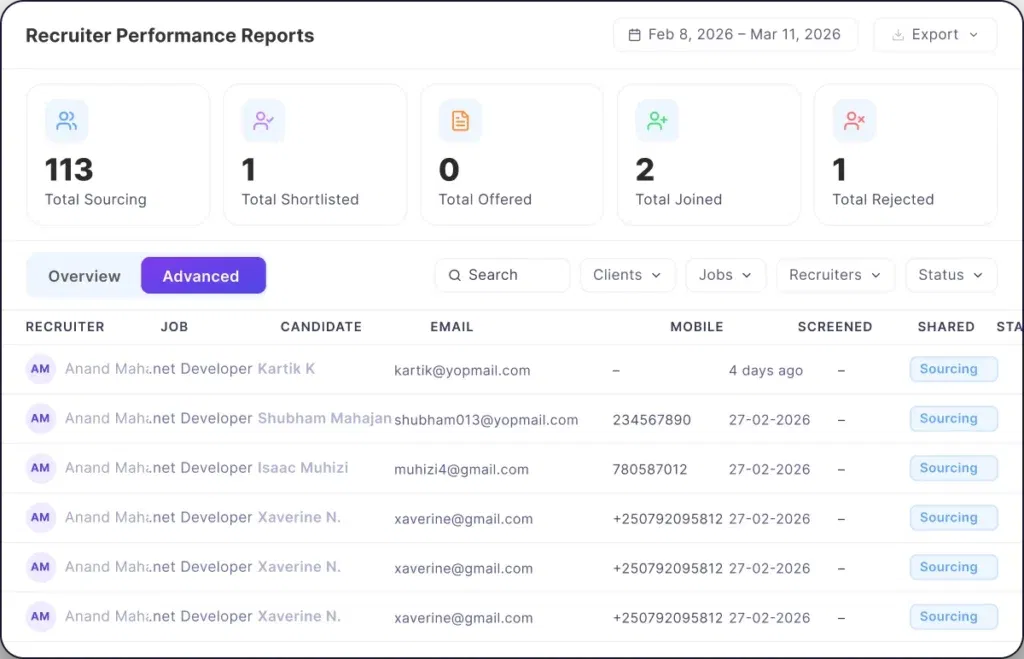
Phase 3: The Visualization (Pivot Tables & Charts)
Now for the visual part. You don’t want to look at 500 rows of text; you want to see trends.
1. Create a Pivot Table
Go to Insert > Pivot Table.
- To see your Pipeline: Drag
Statusto the Rows area andCandidate Nameto the Values area (set to “Count”). - To see Source Efficiency: Drag
Sourceto Rows andCandidate Nameto Values.
2. Insert Slicers
Slicers are the “buttons” that make your dashboard interactive.
- Go to
PivotTable Analyze > Insert Slicer. - Select
Job TitleandSource.
Now, when your CEO asks, “How is the Java Developer search going?” you can click one button and the entire dashboard filters to show only that role.
The Turning Point: Why Excel is Slowing You Down
You’ve built the dashboard. It looks great. But three weeks from now, you will hit the “Excel Wall.”
The “old way” of recruitment tracking relies on manual entry. Every time a candidate applies on LinkedIn, you have to copy their name. Every time you finish an interview, you have to update the status.
The Hidden Costs of Manual Tracking:
- Human Error: One wrong date in a cell breaks your Time-to-Hire average for the whole year.
- Lack of Real-Time Sync: Your spreadsheet is always out of date. It doesn’t know that a candidate just declined an offer until you manually type it in.
- Fragmented Tools: You are jumping between LinkedIn, your email, your calendar, and your spreadsheet. This “context switching” is a productivity killer.
- No AI Sourcing: Excel can track data, but it can’t find candidates. You are still doing the hard work of searching job boards manually.
Phase 4: The Modern Way (Niyuk’s Automated Dashboard)
This is where you Transform your workflow. Imagine a dashboard that builds itself while you sleep.
Niyuk is an all-in-one AI-powered recruitment platform that replaces the messy spreadsheets with a sleek, unified interface.
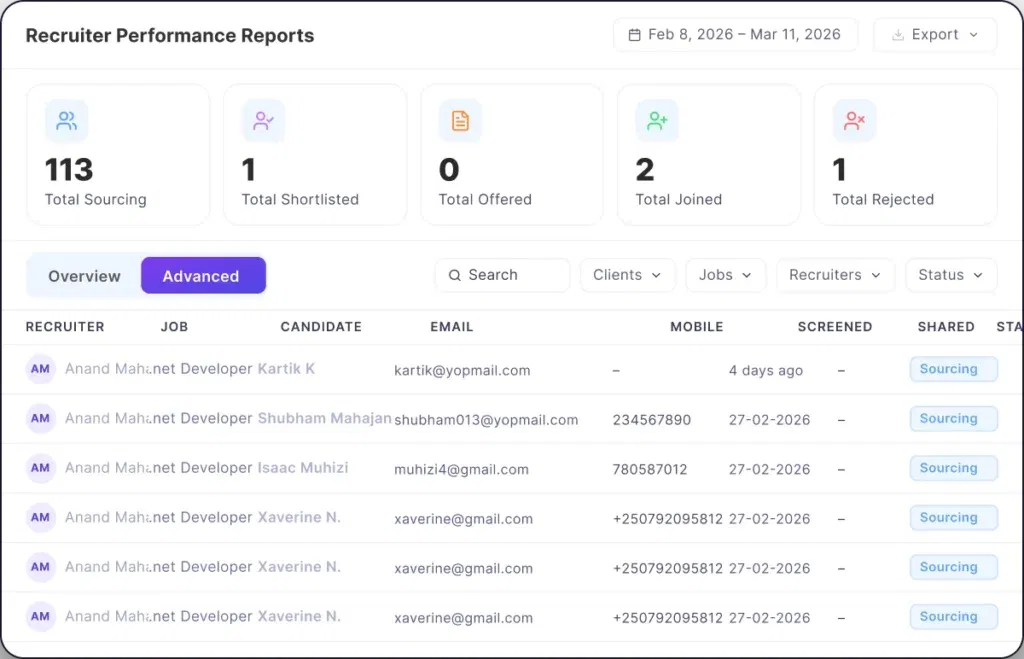
Why Niyuk is the Definitive Solution:
- Automatic Data Capture: When our AI Sourcing engine finds a candidate on LinkedIn, they are automatically added to your dashboard. No typing required.
- Real-Time Funnels: See exactly where candidates are dropping off. Are your interviews too long? Is your offer-to-acceptance ratio low? Niyuk tells you instantly.
- Bias-Free Screening: Our AI Interview and Assessment tools score candidates objectively, feeding performance data directly into your dashboard.
- Unified Lifecycle: From the first “hello” to the final payroll run, your data stays in one place. Niyuk integrates HRMS and Payroll so you never lose track of an employee’s journey.
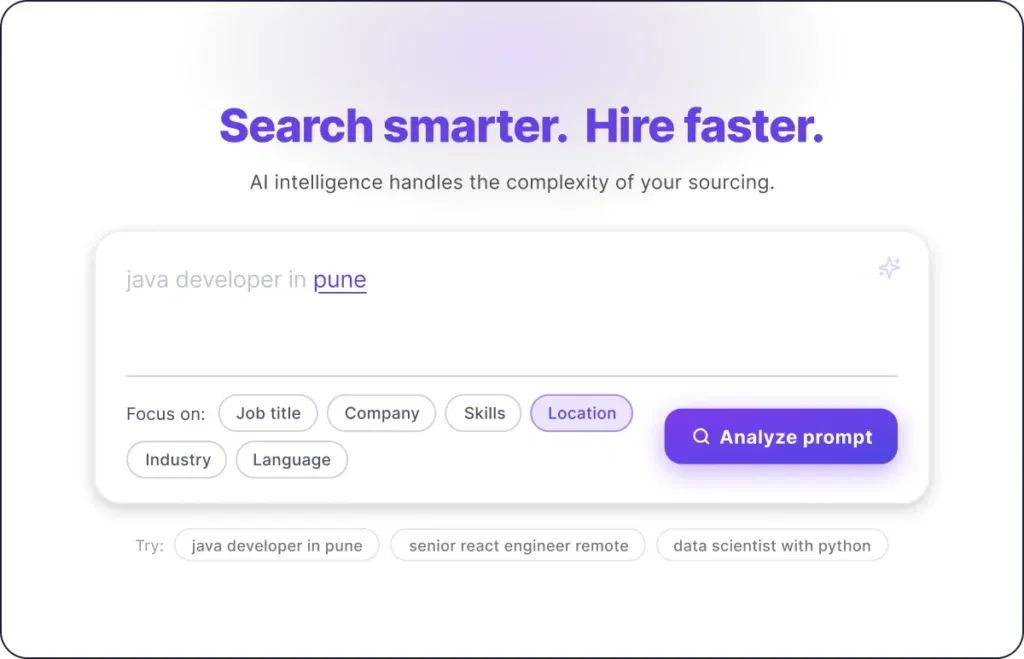
Stop Spreadsheet Management. Start Strategic Hiring.
Building a recruitment dashboard in Excel is a great first step, but it shouldn’t be your final destination. Your time is better spent interviewing top talent and building culture than it is debugging Excel formulas.
Switch to a platform that gives you total visibility without the manual labor. Whether you are a tech startup or a high-volume recruitment agency, Niyuk provides the clarity you need to scale.
Ready to see your recruitment data in real-time?
Explore Niyuk Recruit Today and leave the spreadsheets behind.
Frequently Asked Questions
Q: What are the most important KPIs to track in a recruitment dashboard?
A: The four critical metrics are Time-to-Hire (speed), Cost-per-Hire (budget), Source Quality (where your best people come from), and Offer Acceptance Rate (how well you are “selling” the role).
Q: Can Excel handle high-volume recruitment?
A: Technically, yes, but it becomes a nightmare. Once you pass 50+ open roles or 1,000+ candidates, the manual data entry becomes a full-time job in itself. This is when an automated ATS/CRM becomes essential.
Q: How do I share my Excel dashboard with my team?
A: You can host it on OneDrive or SharePoint for co-authoring, but be careful. Multiple people editing a spreadsheet often leads to “Version Chaos” and deleted formulas.
Q: Does Niyuk integrate with other tools?
A: Yes. Niyuk is designed to be your central hub. It automates sourcing across LinkedIn and job boards and syncs perfectly with your internal HRMS and Payroll systems.
Q: Is it hard to migrate from Excel to Niyuk?
A: Not at all. You can import your existing candidate data directly into Niyuk. Our platform will then take over the tracking, updating statuses automatically as you move candidates through the AI-powered stages.